
How to force restart your MacBook if it’s frozen or glitchy
February 26, 2024
Apple devices and operating systems are known for their stability and fault tolerance. However, any equipment can sometimes slow down or even freeze; this happens due to unoptimized code of third-party applications or conflicting processes, and sometimes due to physical breakdown.
When the problem is software, it is often enough to restart the application or your Mac / MacBook to bring it back to life. There are several ways to do this.
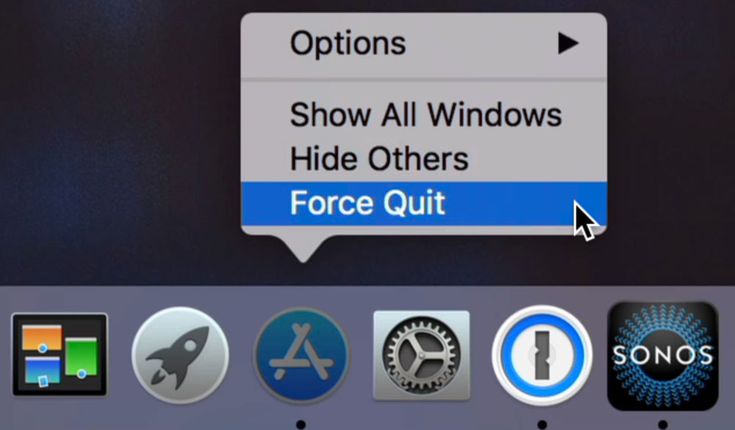
- To force close a frozen application in macOS, hold down the Alt / Option (⌥) button and right-click the program icon in the Dock (or use two fingers on the trackpad). Select Force Quit. Please note that some changes and actions in the application before the freeze may be reset.
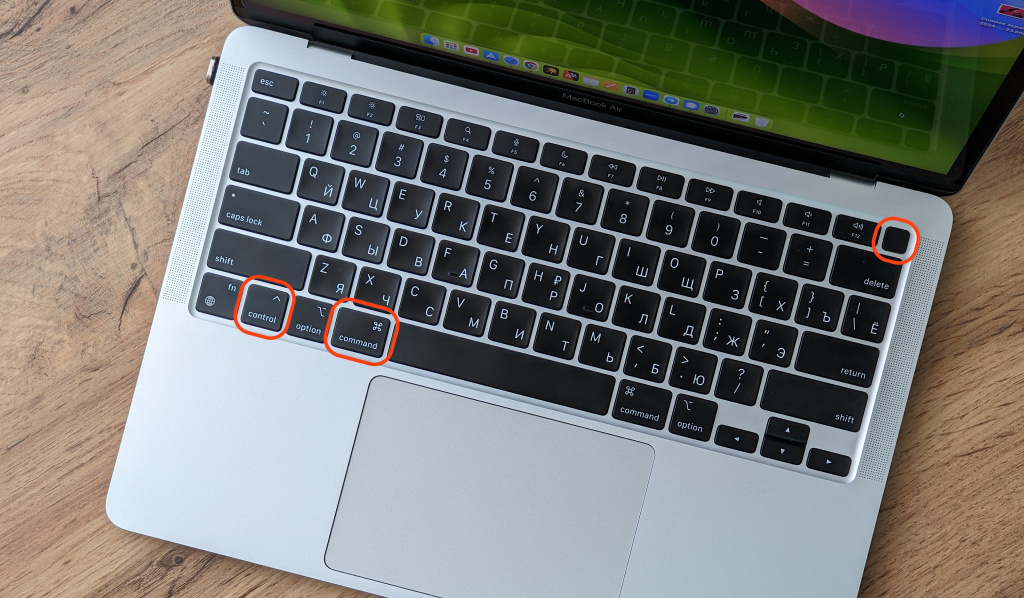
- To restart macOS (that is, the computer as a whole), simultaneously press and hold three buttons: Command (⌘), Control (Ctrl) and the power button. It is usually located in the upper right corner of the keyboard – either with the Power designation, or without a signature at all. Hold the buttons until you see the apple and hear the sound of your Mac turning on.
In general, freezing for a Mac is not the norm, so with regular or even frequent freezing, there is a possibility of a physical malfunction of one of the components, for example, an SSD drive.

Outstanding Indian tech CEOs in the US

2024 is The End of Compact Flagship Phones

Why you shouldn’t compare your brain to a computer
About The Author
